Student guide
Install, onboarding, check-in on iPhone and Android, verifying your attendance and getting help. Version 2.0 · August 2026.
You are part of this project
SmartSeat is not a finished product handed to you: it is a tool we are building together. Every check-in, every idea and every issue you report shapes the next version — students as co-creators, not just users.
What is SmartSeat?
Attendance and participation, straight from your seat.
In class you check in by tapping the NFC chip on your seat with your phone, or by scanning a QR code. Your professor sees the live seating chart and your attendance is sent automatically to Blackboard after the class is finished.
What you need
- Your IE University account (the same one you use for Blackboard).
- A smartphone: iPhone (iOS 16+) or Android (Android 8+ with NFC).
- Wi-Fi or mobile data in the classroom.
SmartSeat is a web app (PWA)
There is no App Store or Google Play download. You install SmartSeat from the browser by adding it to your Home Screen, and it then behaves like a normal app icon.
smartseat.ie-edu.lovable.appInstall SmartSeat on your phone
Do this once, before your first class. Using SmartSeat inside Safari or Chrome instead of the installed icon may ask you to sign in every time you tap a chip.
iPhone / iPad (Safari)
- Open Safari — not Chrome or the browser inside Instagram, WhatsApp or Outlook — and go to smartseat.ie-edu.lovable.app.
- Tap the Share button in the bottom bar.
- Choose “Add to Home Screen” and confirm with “Add”.
- Close Safari completely and open SmartSeat from the new icon.
- Sign in with your IE account. You only do this once.
Android (Chrome)
- Open Chrome and go to smartseat.ie-edu.lovable.app.
- Tap the menu (⋮) and choose “Install app” or “Add to Home screen”. If a banner appears at the bottom, just tap it.
- Open SmartSeat from the new icon in your app drawer.
- Enable NFC: Settings → Connected devices → Connection preferences → NFC → On.
- Sign in with your IE account.
If a chip opens a screen asking you to install
When you tap an NFC chip from Safari, SmartSeat shows the installation steps. You can still tap “Continue in browser” to check in right now, but you will not get the benefits of the installed app. Install it as soon as you can.
Sign in with your IE account
Microsoft Single Sign-On, once per device.
Open SmartSeat from the installed icon.
Tap “Sign in with Microsoft” (IE University account), or Google if that is how your IE account works.
Enter your IE email and password and complete MFA if requested.
Wait until the app returns to SmartSeat by itself. Do not close the app during login.
If you get stuck in a login loop
- Always start from the installed SmartSeat icon, never from a link inside Safari, Instagram, WhatsApp or Outlook.
- Close all other Safari tabs of SmartSeat, then open the app again.
- If MFA does not progress, open Microsoft Authenticator first, approve there and return to SmartSeat.
- Still looping? Open a ticket in the app or email the team — and tell your professor in class so you do not miss your check-in.
First-time onboarding (2 minutes)
A short 3-step wizard that appears only once.
Your profile photo: tap “Use this photo” if your IE photo is there, or “Take a selfie now” and allow camera access. Your photo helps professors recognise you in the seating chart. You can also add it later from your profile.
A few optional questions — nickname, country, age, gender and what you would like to do after your program. You can tap “Skip for now”.
Done. You land on your dashboard, and from now on the app opens straight into it.
Checking in to class
Your professor opens the session when class starts. Check in from your own seat: the chip you tap is the seat you get.
Option A — NFC chip
iPhone: open SmartSeat from the Home Screen icon first, hold the top edge of the phone flat against the chip for 1–2 seconds and tap the notification that appears.
Android: with NFC on and the screen unlocked, hold the middle/back of the phone against the chip for 1–2 seconds. SmartSeat opens on the confirmation screen.
Option B — Manual seat
If NFC fails, ask your professor to mark you present. The last two digits on the NFC tag in front of your seat are your seat number.
Option C — QR code
If your professor uses QR instead: go to “Check in” in the bottom bar, scan the QR code shown on screen and confirm your seat.
NFC not working?
- Remove thick cases, wallets or metal card holders between the phone and the chip.
- Move the phone slowly across the chip — the antenna position varies between models.
- Keep the screen on and unlocked, and try again from the installed app.
- If it still fails, ask your professor to check you in manually and report the issue in the app.
Late arrivals = absent
If you arrive after the check-in window closes you will be marked absent, in accordance with the official IE University Attendance Policy.
Always verify that your attendance was saved
Ten seconds of checking now can save a disputed absence at the end of the term.
A. In SmartSeat, right after checking in
- You should see a green confirmation screen with your name, your seat and the class.
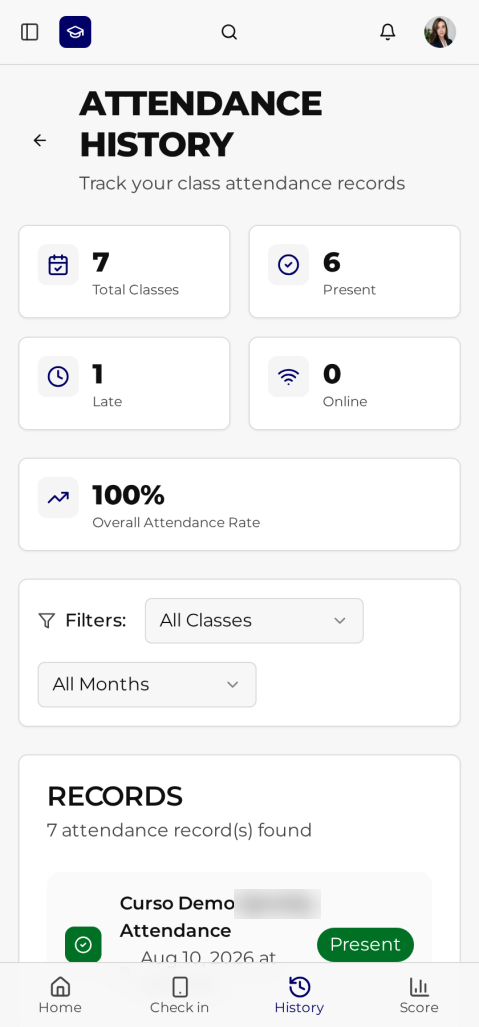
- Open “History” in the bottom bar, or “My Attendance” in the menu.
- Find today's class and confirm the status badge: Present, Late or Online.
B. In Blackboard, the same day
- Open your course and go to the Attendance tool or Attendance column.
- Check that today's session shows you as present — a late check-in also counts as present in Blackboard.
- Attendance is sent shortly after the session closes, so allow a few hours. If it is still missing the next day, report it.
If something does not match, tell your professor as soon as possible
- Report it in the same class if you can, and in any case within 48 hours.
- Say exactly: course name, date and time of the session, your seat and what you see.
- Take a screenshot of the SmartSeat screen showing your status — it is the fastest proof.
- Also open a ticket in the app so the team can fix the root cause, not just your record.
Getting help inside the app
Use the in-app channel: it reaches the team that can fix the app.
Open the menu with the icon in the top-left corner of the app.
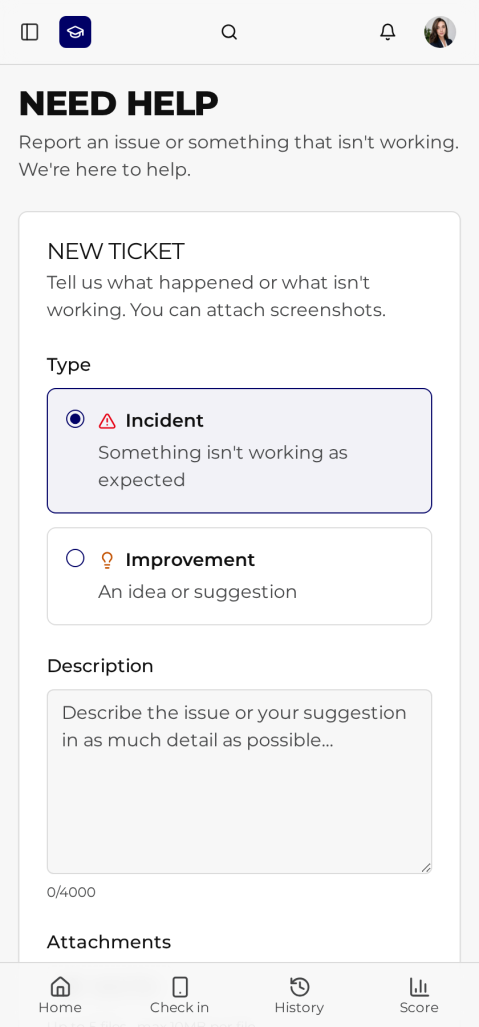
Tap “Need help”.
Choose the type: Incident if something is not working, Improvement if it is an idea or suggestion.
Describe it in detail: course, date and time, what you did and what happened.
Attach screenshots (up to 5 files, max 10 MB each). A screenshot almost always halves the resolution time.
Send. Your ticket appears below with its status, and you will see the team's reply there.