Faculty guide
Launch attendance, follow the live seating chart and sync to Blackboard — end to end. Version 2.0 · August 2026.
Overview
SmartSeat is a tailor-made platform for IE University attendance and participation. Students check in by tapping the NFC chip on their desk, you see them appear live on the seating chart, and attendance syncs automatically to Blackboard Ultra.
Before you start
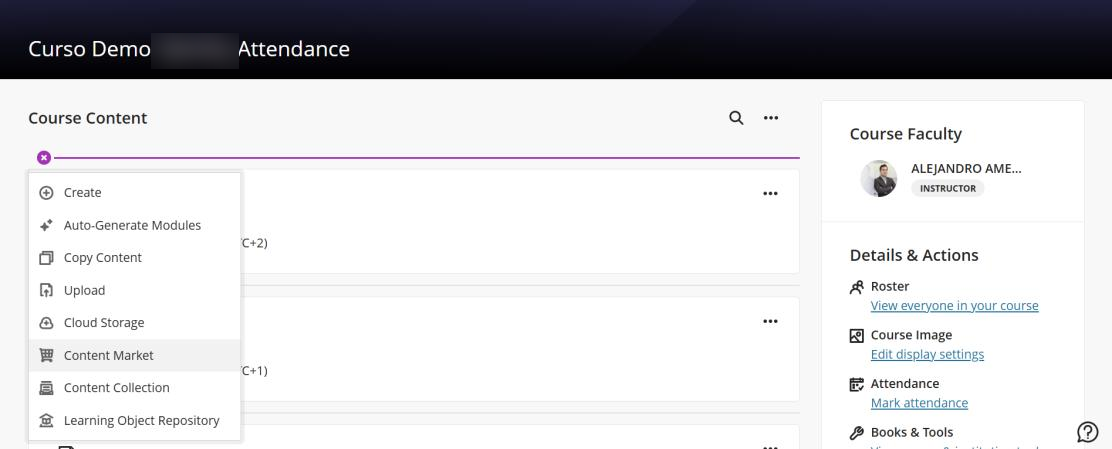
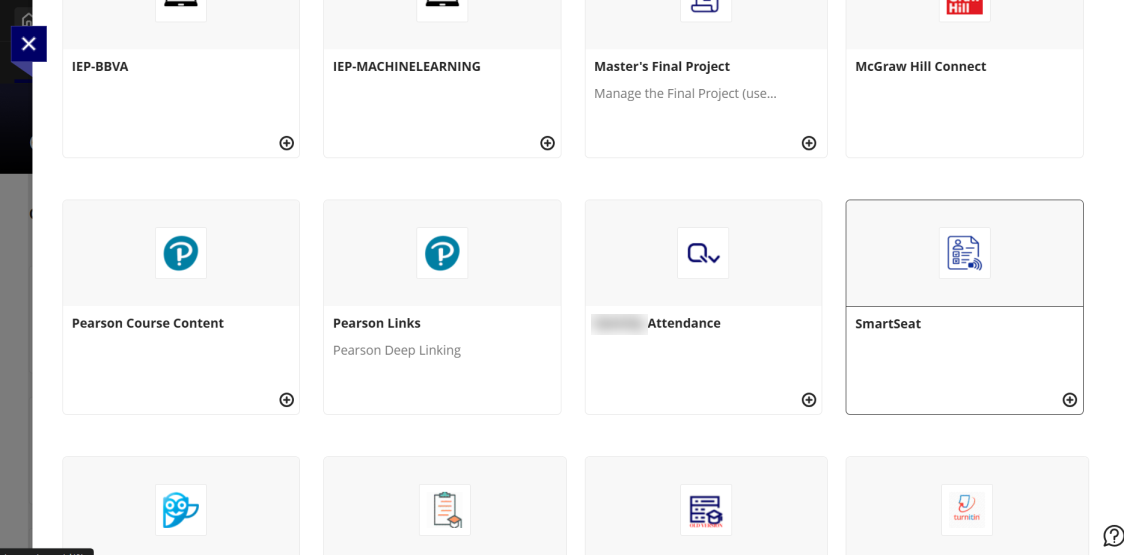
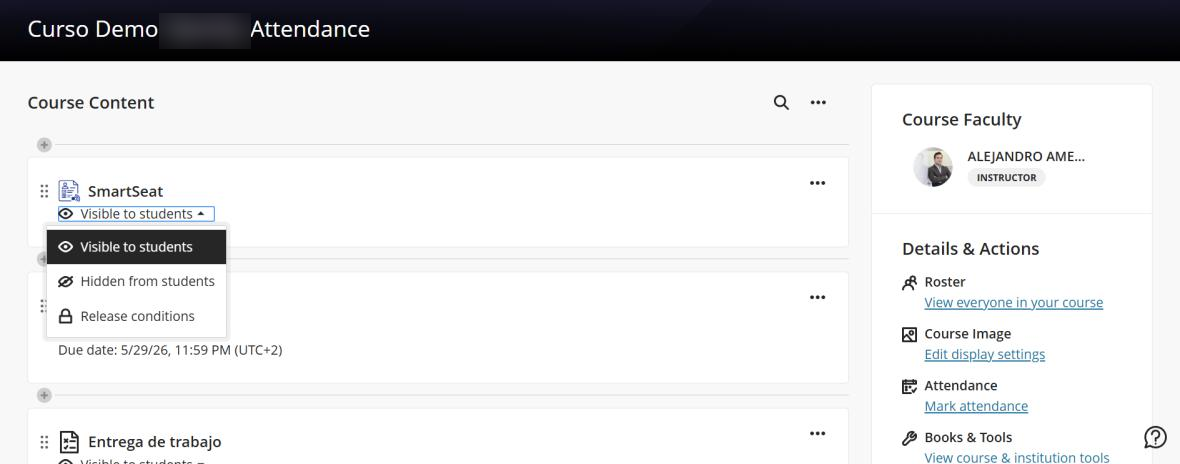
Add SmartSeat to your Blackboard course once, before the first session.
In Blackboard, open your course and click the + symbol on top of the course content, then select Content Market.
Scroll down, find SmartSeat and click the + symbol to add it to your course.
Make it visible to students and click the app to open it in a new tab. You only need to do this once per course.
Access the app
From Blackboard or from any browser with your IE account.
From Blackboard
- Open your course in Blackboard.
- Check that SmartSeat is visible to students and click it to launch it in a new window.
- The system recognises your SSO credentials and logs you in automatically.
From any browser
Open smartseat.ie-edu.lovable.app and sign in with your IE Microsoft account (Single Sign-On).
If you are launching the app for the first time, remember the Content Market step above.
Daily workflow
Start the session, watch the check-ins and close attendance.
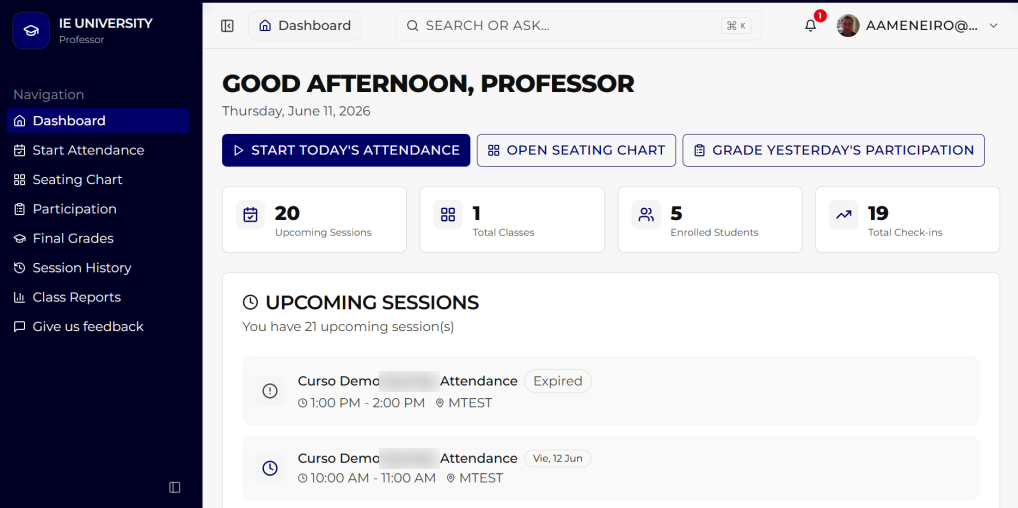
From the dashboard, click “Start Today's Attendance” (or sidebar → Start Attendance).
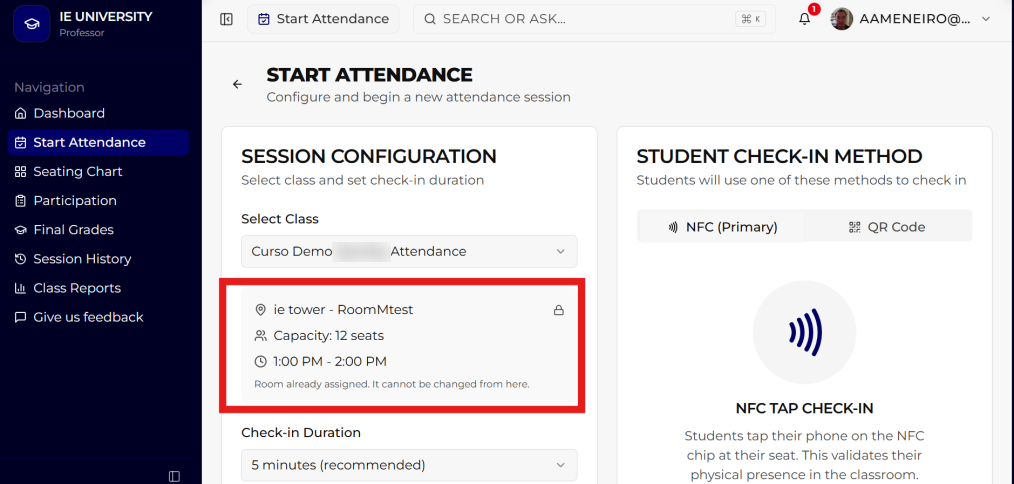
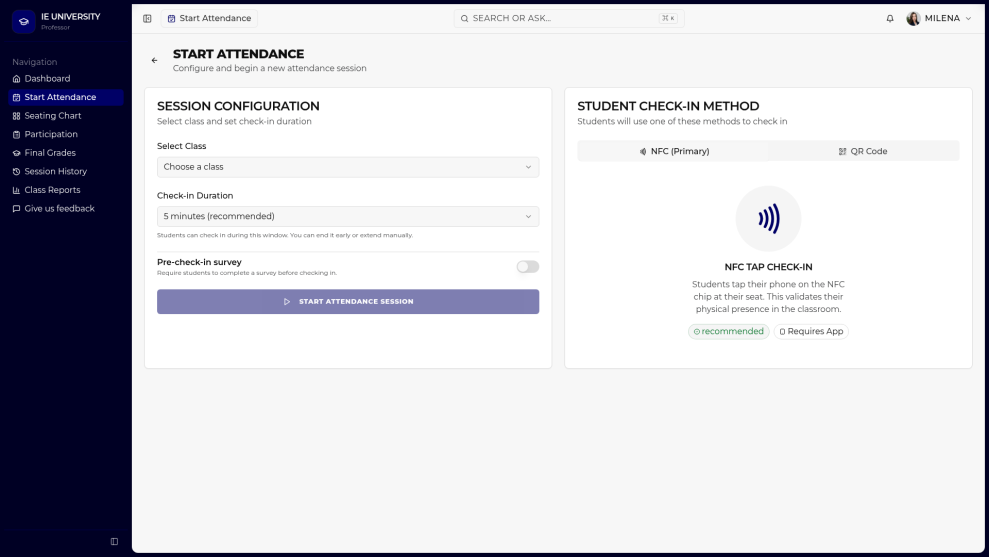
Select the class from the dropdown. Only classes scheduled for today are listed.
Review that the room is correctly assigned to the selected course.
Pick a check-in duration — 5 minutes is the recommended default.
Choose the check-in method: NFC (primary) or QR code fallback for rooms without chips.
Click “Start Attendance Session”.
Live seating chart
As students tap their chips, their photos light up on the chart. The chart is inverted: the front of the room is at the bottom of the screen so it matches what you see standing at the lectern.
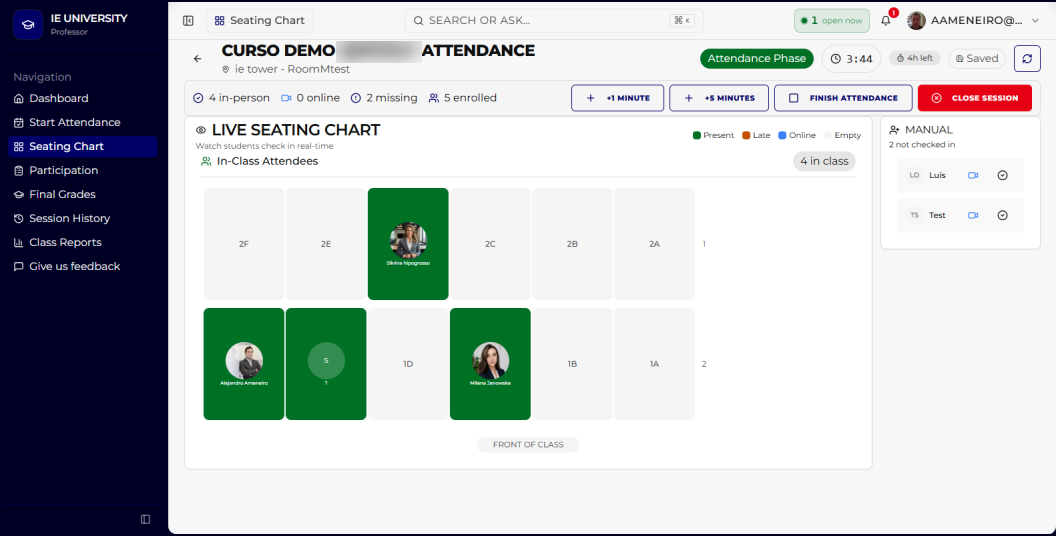
Click “Finish Attendance and Start Session” when the check-in process is done, or wait for the timer to close the phase automatically. Attendance is locked and pushed to the Blackboard Attendance module.
After finishing the attendance phase you can stay on the seating chart and use it to interact with your students and learn their names.
In this mode you can also add late students manually from the roster on the right-hand side. They are marked as “late” (orange) in SmartSeat and as “present” in Blackboard, so please follow the official IE Attendance Policy for your course when using this feature.
Blackboard integration
It runs automatically, but this is what happens behind the scenes.
- Your courses, students and instructor assignments sync from Blackboard daily.
- Attendance records sync to the Blackboard Attendance module the moment you end a session.
Need help?
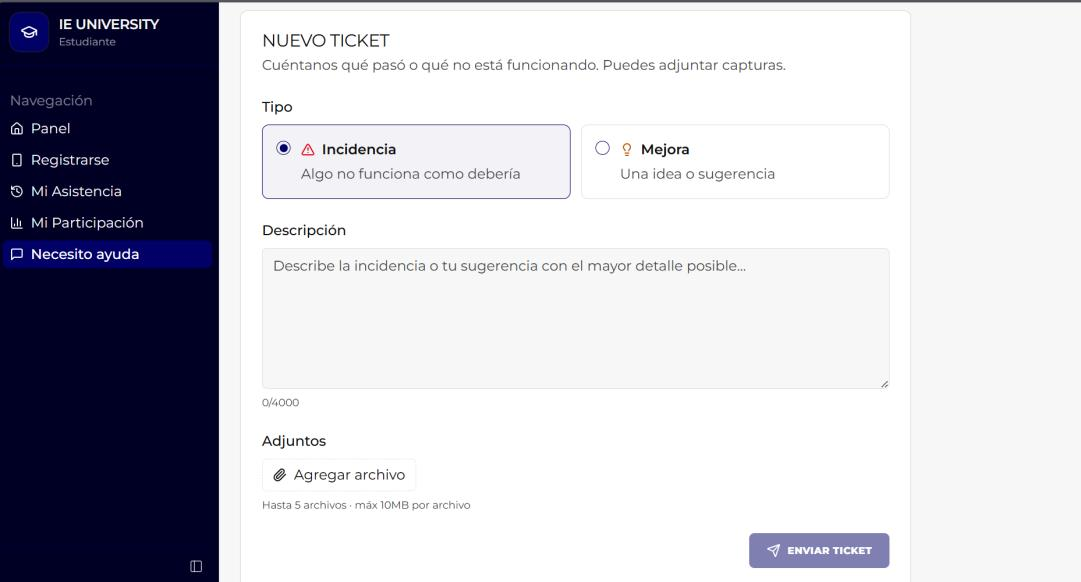
Report it in the app or contact the project team directly.
In the app
User menu → “Need help” → New ticket. Choose Incident if something is not working, or Improvement if it is an idea, describe the case and attach screenshots (up to 5 files, 10 MB each).
Project team
milena.janowska@collab.ie.edu